![2 Relief Buddy Logo Final, RB and Text, Horizontal-1.png]](https://knowledgebase.reliefbuddy.com/hs-fs/hubfs/2%20%20Relief%20Buddy%20Logo%20Final%2c%20RB%20and%20Text%2c%20Horizontal-1.png?height=40&name=2%20%20Relief%20Buddy%20Logo%20Final%2c%20RB%20and%20Text%2c%20Horizontal-1.png)
The Regional Manager account allows authorized regional or district managers to access and manage multiple Owner accounts from one place.
Regional Managers can review the Owner accounts assigned to them and enter an individual account to manage its locations, shifts, users, and other account activity.
Important: Regional Manager access is available through the Relief Buddy desktop portal only. It is not currently available through the mobile app.
How Regional Manager Access Works
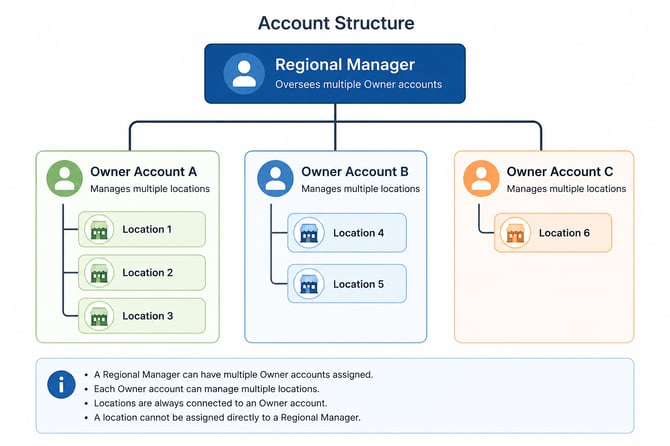
A Regional Manager account sits above one or more Owner accounts.
Each Owner account can manage one or more individual locations. When a Regional Manager enters an Owner account, they receive the same access and capabilities as the Owner.
This allows a Regional Manager to oversee multiple owners, managers, or business units without requiring a separate login for every account.
A Regional Manager can have multiple Owner accounts assigned to them, and each Owner can manage multiple locations.
Locations are always connected to an Owner account. A location cannot be assigned directly to a Regional Manager.
Multiple Regional Managers can be assigned to an individual Owner Account.
Understanding Regional Manager Visibility
Regional Manager access follows the account structure shown below:
Accessing Your Regional Manager Account
To access the Regional Manager dashboard:
- Open the Relief Buddy desktop portal.
- Sign in using your Regional Manager account credentials.
- Review the list of Owner accounts assigned to you.
- Select the Owner account you would like to access.
You will then enter the platform as that Owner and will be able to access the same account information and functions available to them.
What Can a Regional Manager Do?
After entering an assigned Owner account, a Regional Manager can perform any action that the Owner would normally be able to perform.
Depending on the account and its configuration, this may include:
- Viewing and managing the Owner’s locations
- Adding, editing, or removing locations
- Creating and managing shifts
- Reviewing applicants
- Confirming workers for shifts
- Managing location information
- Accessing billing or payment information available to the Owner
Actions completed while accessing an Owner account are applied directly to that account.
Please review the selected Owner account before making changes. Updates may affect the Owner and all locations connected to their account.
Viewing Different Owner Accounts
Regional Managers can only access Owner accounts that have been specifically assigned to them.
To manage a different Owner, return to the Regional Manager dashboard and select another assigned Owner account.
Access to one Owner does not provide access to other Owner accounts unless those accounts have also been assigned to the Regional Manager.
Regional Manager → Owner Account → Individual Locations
The Regional Manager can see what each assigned Owner can see. This includes all locations and account information managed by that Owner.
Regional Managers cannot:
- Access Owner accounts that have not been assigned to them
- Access locations belonging to an unassigned Owner
- Have an individual location assigned directly to their Regional Manager account
- View information beyond the permissions available to the selected Owner
Setting Up Regional Manager Access
Regional Manager access must be configured by an authorized Network Administrator.
For assistance with Regional Manager access or Owner account assignments, contact your Network Administrator.