![2 Relief Buddy Logo Final, RB and Text, Horizontal-1.png]](https://knowledgebase.reliefbuddy.com/hs-fs/hubfs/2%20%20Relief%20Buddy%20Logo%20Final%2c%20RB%20and%20Text%2c%20Horizontal-1.png?height=40&name=2%20%20Relief%20Buddy%20Logo%20Final%2c%20RB%20and%20Text%2c%20Horizontal-1.png)
Shift Management and Filters
Relief Buddy has updated the Schedule view in the Mobile App and Desktop Portal to make it easier to separate Active Shifts from Cancelled Shifts.
By default, active and actionable shifts are displayed first, while Cancelled, Completed, and other historical statuses can be viewed using the Shift Filter options.
How to View Cancelled Shifts
- Open the Schedule section
- Select the appropriate tab (Accepted, Past, or Applied)
- Tap or click the Filter icon
- Enable or disable shift statuses as needed
You can now quickly:
- Hide cancelled shifts
- View only active shifts
- Review completed shifts
- Filter by shift status
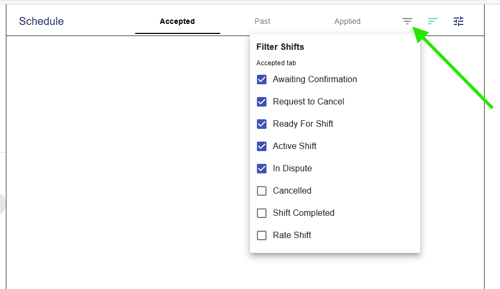
Common Shift Statuses
- Awaiting Confirmation
- Ready For Shift
- Active Shift
- Request to Cancel
- Cancelled
- Shift Completed
- Rate Shift
Important Notes
- Active shift statuses are enabled by default
- Cancelled and historical statuses may be hidden until selected
- Filters can be adjusted at any time
Available On
- Relief Buddy Mobile App
- Relief Buddy Desktop Portal