![2 Relief Buddy Logo Final, RB and Text, Horizontal-1.png]](https://knowledgebase.reliefbuddy.com/hs-fs/hubfs/2%20%20Relief%20Buddy%20Logo%20Final%2c%20RB%20and%20Text%2c%20Horizontal-1.png?height=40&name=2%20%20Relief%20Buddy%20Logo%20Final%2c%20RB%20and%20Text%2c%20Horizontal-1.png)
How Request and Apply Works
It allow workers to request a different start time / or end time for the shift.
In some instances, workers may also be able to request a different hourly rate. (If allow offers is turned on).
Workers cannot request changes to Travel Allowance or Accommodation Allowances at this time.
For Workers (Mobile & Desktop App)
When viewing a shift, you can choose:
-
Apply Now – apply using the shift as posted
-
Request Change – apply while requesting a change
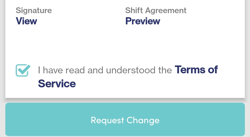
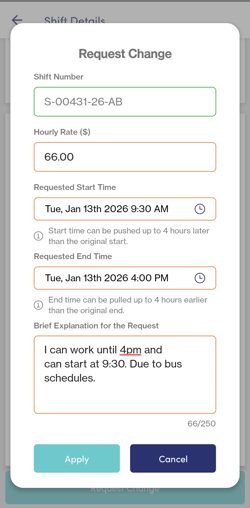
Using Request Change you may:
-
Request a different wage
- NOTE: You may only change the wage if the shift allows it. Some shifts do not allow for wage changes. However all shifts allow for different Start Time / End Time.
- Look for the wage Icon to know if the shift will accept offers

-
Request a later start time (not earlier)
-
Request an earlier end time (not later)
-
Add an optional short explanation (up to 250 characters)
Important rules
-
Time changes must be within 4 hours of the original start or end time
-
Time adjustments are in 5-minute increments
-
The total shift length cannot exceed 24 hours
If you apply with a request:
-
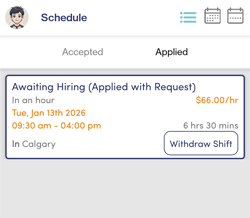
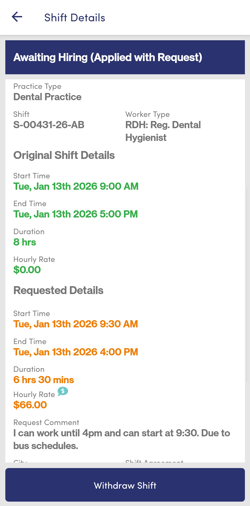
Your applied shifts will show “Applied with Request”
-
The shift details will display your requested times and rate
-
Once accepted, the request label is removed and the shift is confirmed with the updated details
Review of Applied Shifts:
Review of Shift Details:
For Owners: Reviewing a Request
When a professional applies with a request:
-
You’ll see “Applied with Request” beside their application
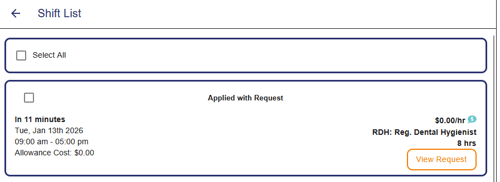
-
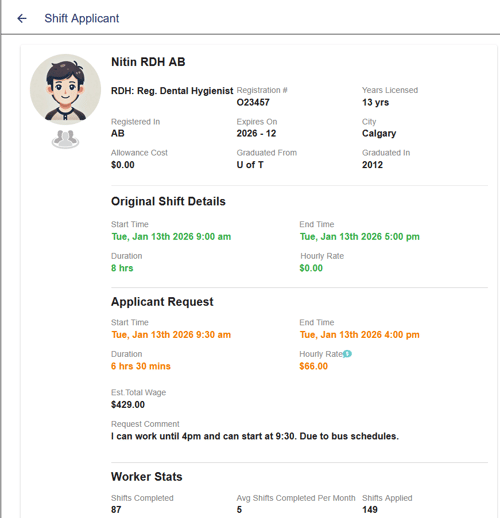
Select View Request to compare:
-
Original shift wage and times (green indication)
-
Requested wage and/or times (orange indication)
-
The worker’s explanation (if provided)
-
The review clearly highlights what has changed so you can make a confident decision.
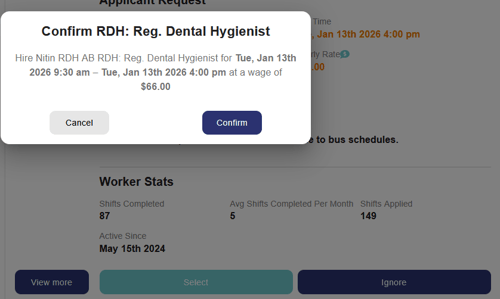
If you accept:
-
The requested wage and times become the official shift details
-
The worker is assigned
-
Shift confirmations reflect the updated agreement
When Is Request and Apply Available?
This feature is tied to the “Allow Offers” setting on a shift.
(look for the Allow Offer icon on the shift  )
)
If offers are enabled, professionals can submit requests.
If not, applications must match the posted shift exactly.